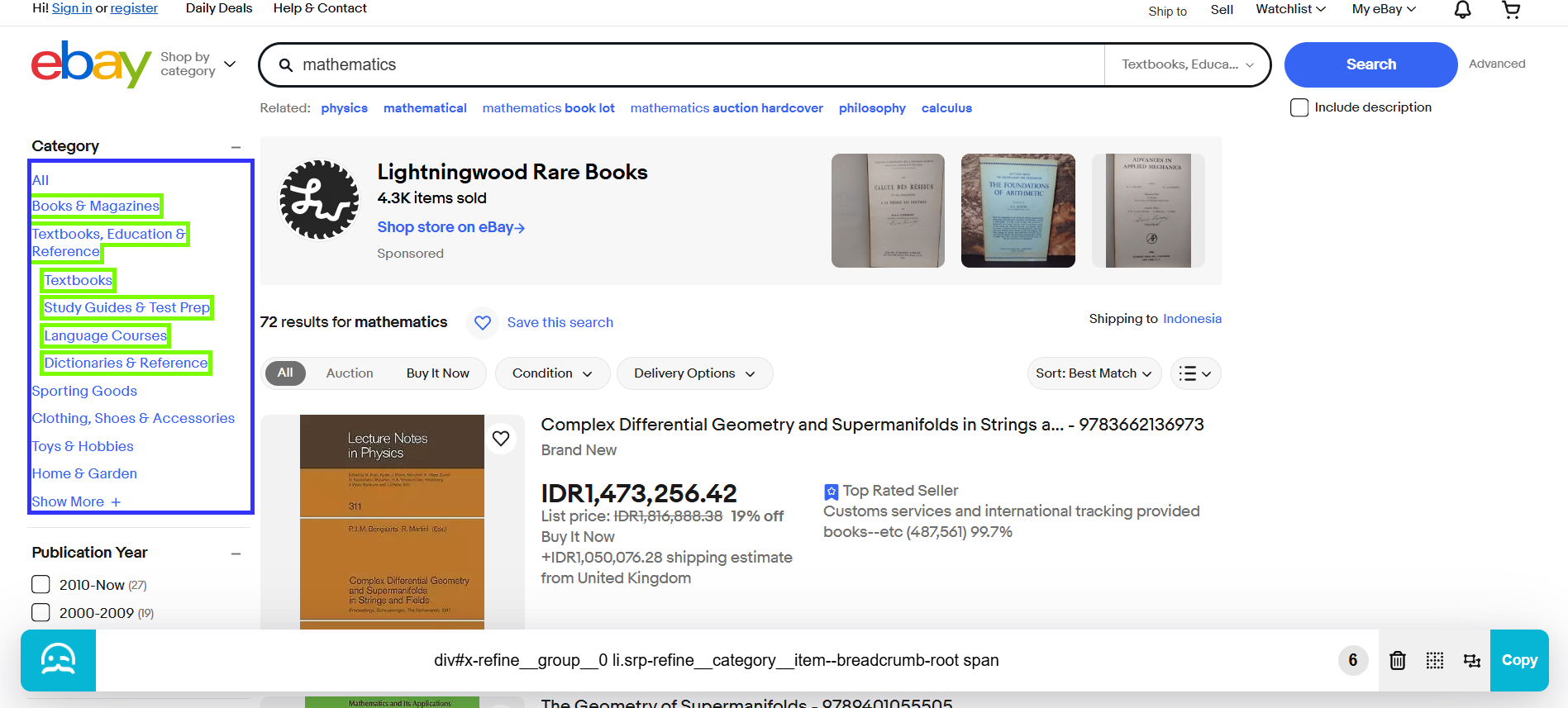
About Extension
MrScraper Selector Helper Extension helps you quickly find CSS Selectors targeting single and multiple selectors by selecting an element. This article will guide you through the extension’s features and how to use them.Currently, the extension is only supported on Chromium-based browsers.
Features
- Toggleable target mode between target single element and multiple elements.
- Customizable root element.
- Manual selector input for selector testing.
Using the Extension
To use the extension, follow these steps:Install the extension
Install the extension from this page or search for MrScraper in the Chrome Web Store.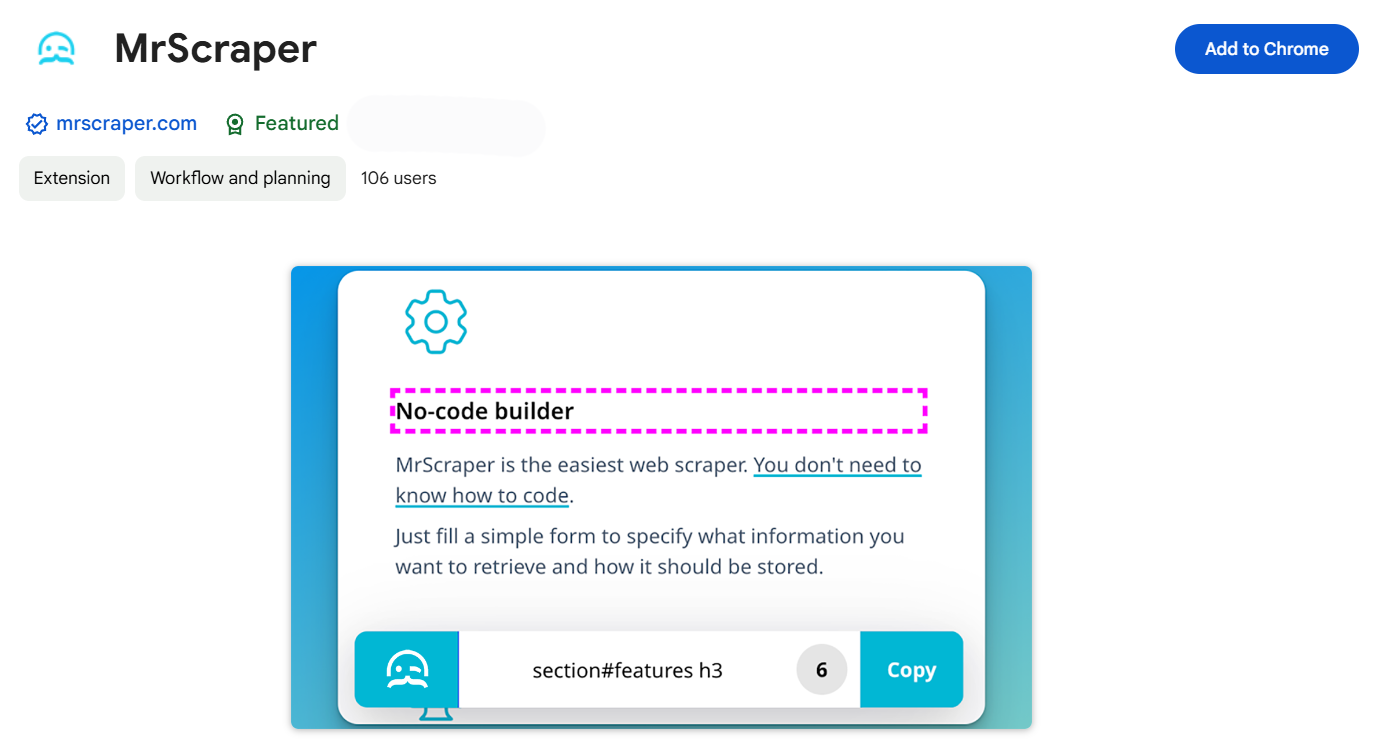
Go to any page
Go to any page that you want to scrape. For example, this guide’ll use the eBay product page.
Activate the extension
Click on the extension icon or use the Ctrl + Shift + V shortcut to turn on the extension. Repeat the same process to deactivate the extension.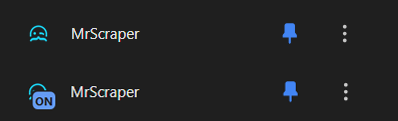
Select any element
Try to hover over any elements. You’ll see a dashed purple border when hovering on any elements. To select that element, press Right Click. Any selected elements will have a solid green border.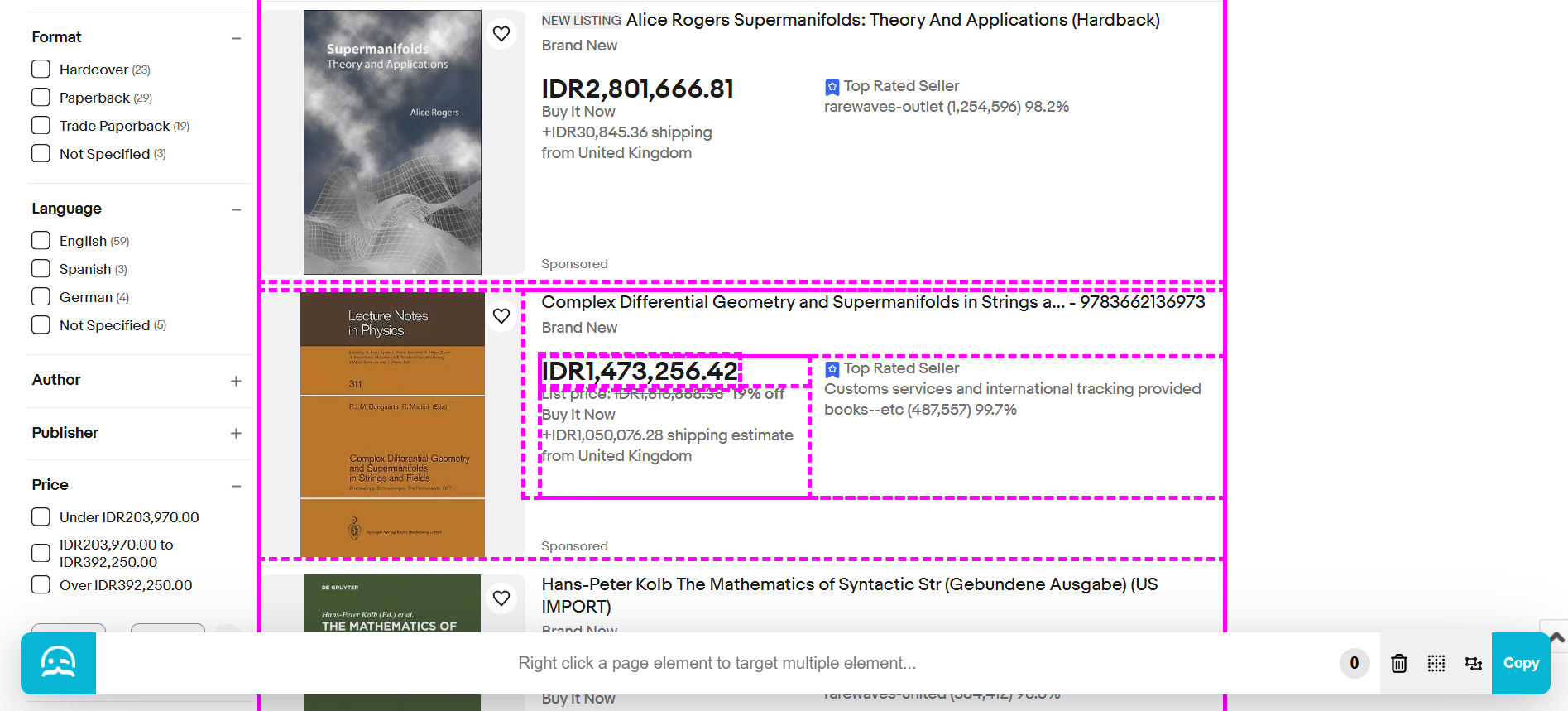
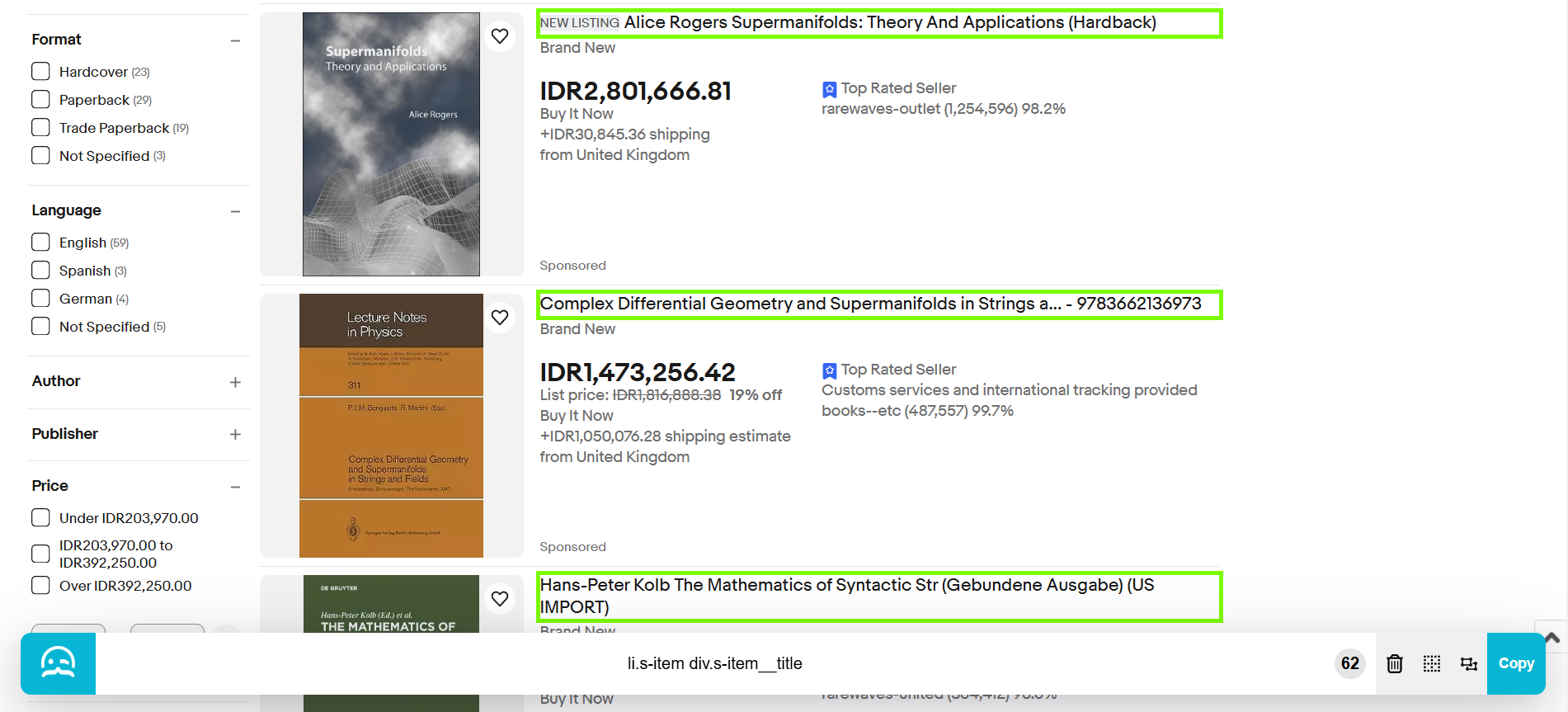
Extension elements and controls

- The input field in the middle for manual input or input results.
- The trash/ clear button. When clicked, this button will reset the CSS selector and root element.
- The dashed window button is used to select the root node.
- The multi/single square button. The button switches the selector mode between single and multiple select modes. By default, it uses multiple select modes.
- The copy button is used to copy the input result.
Single and multiple select modes
You can choose between single and multiple select modes when selecting elements.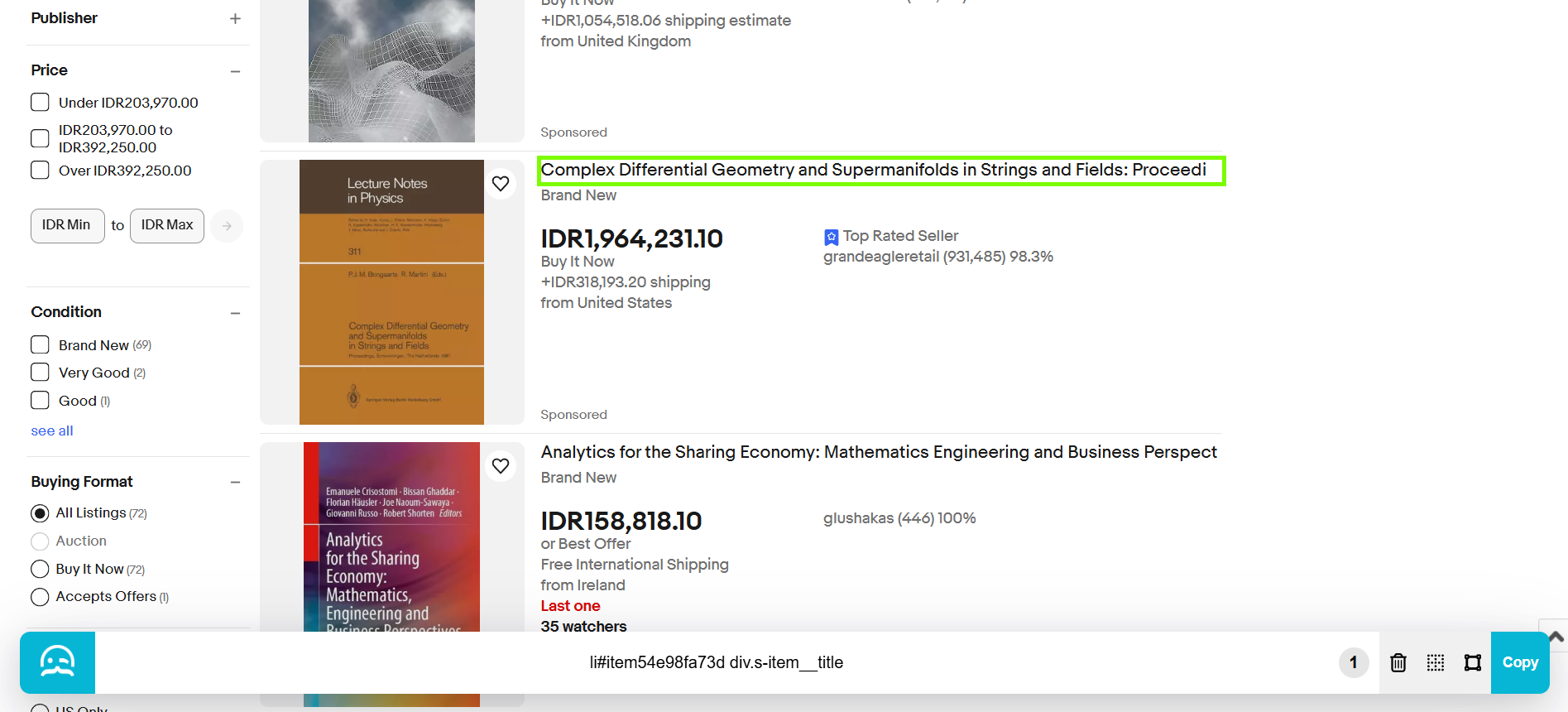
- Multiple select modes will generalize a CSS selector that works on various elements. The multiple-select mode will be useful if you want to select all title elements.
- Single select mode is useful when you want to target only one element, as it tries to find a unique selector for that element.
Changing root node
You can limit the element by changing the root node when selecting elements. Changing the root node can be useful when if you try to target multiple elements, but there are some other elements that you don’t wish to select.